
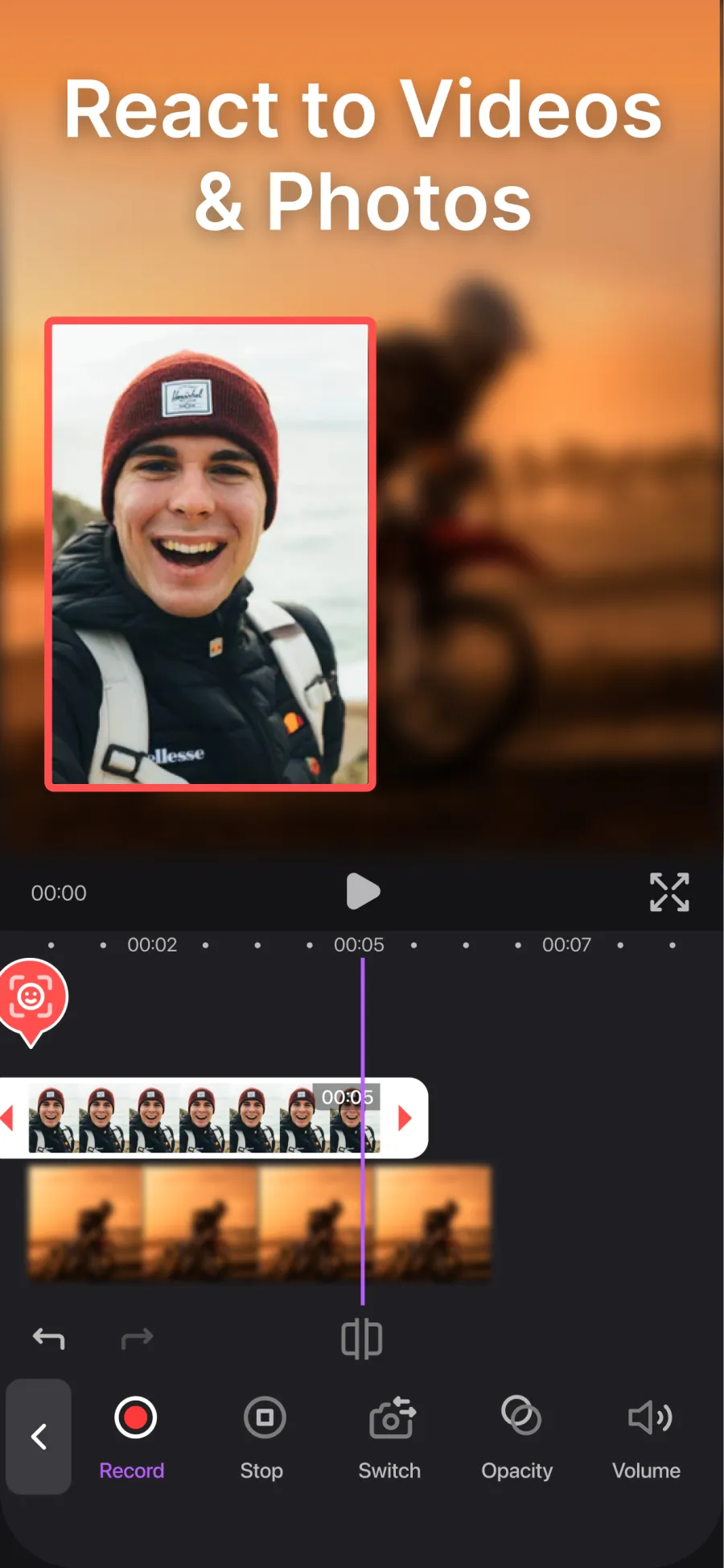
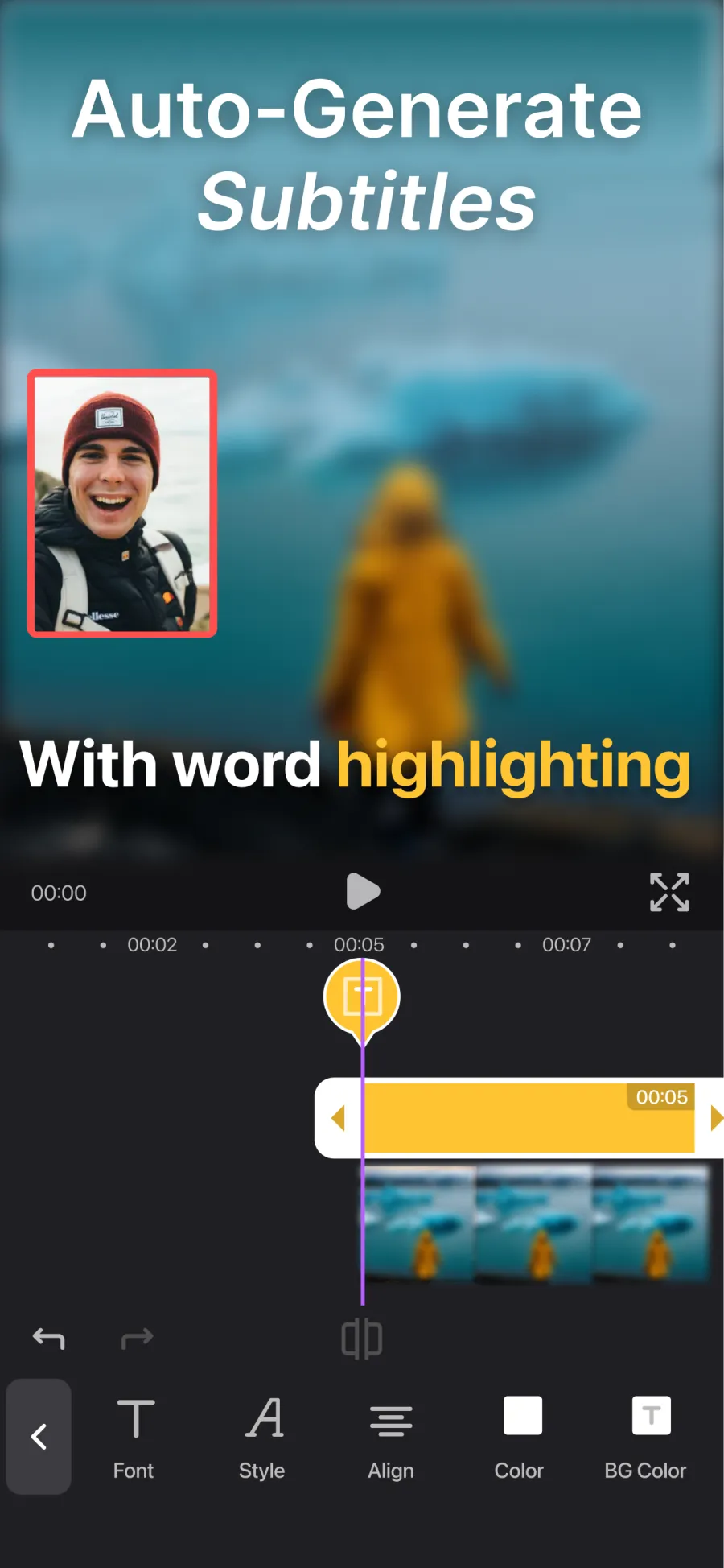
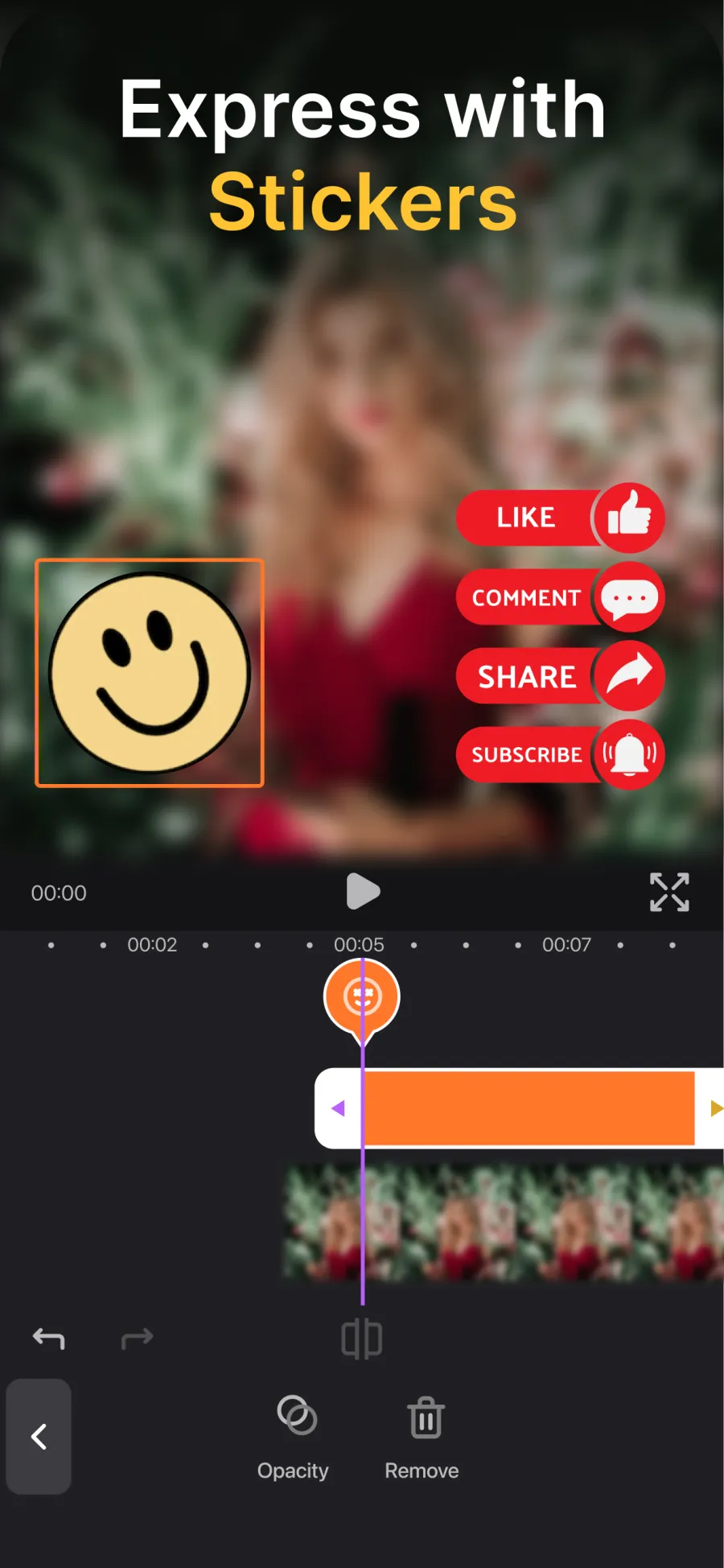
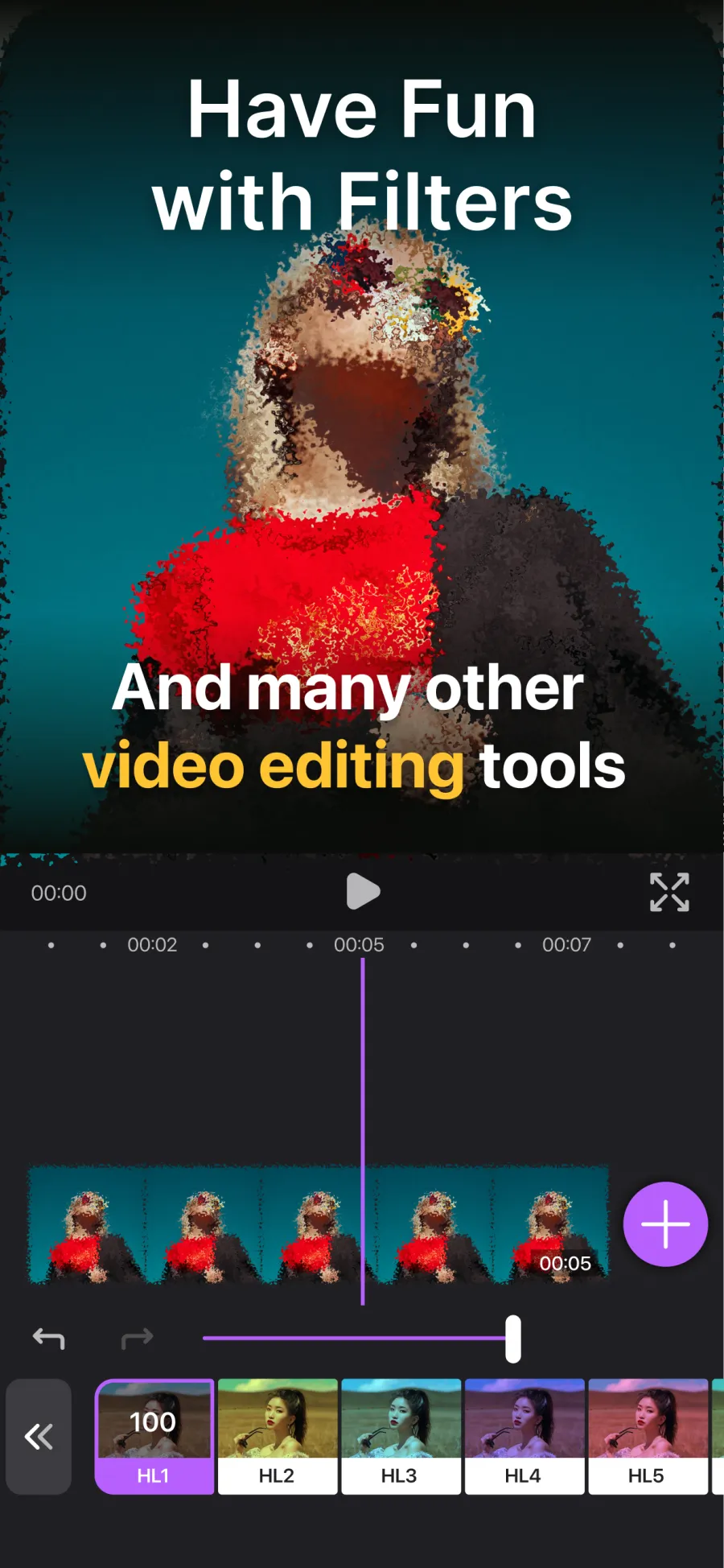
ReactCam combines a screen recorder, a facecam reaction editor, and a subtitle generator in one iPhone app.
Add multiple picture-in-picture facecams over any video. Mirror the camera, adjust opacity and volume, blur or remove your background — no green screen needed.
Capture any app, game, or content on your iPhone with one tap, then react to the recording with your facecam.
Import videos or images straight from your photo library — downloaded clips, music videos, sports highlights, memes, screenshots, family photos — and record your reaction on top.
Generate subtitles from your recorded voice, with each word highlighted as you say it — the karaoke-style captions short-form video runs on. Restyle, edit, or remove them inside your project.
Trim and merge clips with crossfades, add text overlays, filters, and thousands of animated GIPHY stickers.
Export in up to 4K, then post straight to TikTok, Instagram Reels, YouTube Shorts, or WhatsApp from the export screen — or save to your camera roll. Pro is a one-time purchase — no subscription.
Step-by-step answers to the most common questions about recording reactions on iPhone.
From picking a video to exporting in 4K — the complete workflow for YouTube, TikTok, and Instagram reactions.
Read the guide →iOS makes this tricky. Here's how ReactCam captures both and keeps them perfectly in sync.
Read the guide →Generate subtitles from your voice, style them to match your brand, and edit every word before export.
Read the guide →Yes. ReactCam is free to download and includes screen recording, facecam overlays, and basic editing. Pro is a one-time purchase with lifetime access — no subscription — and unlocks all export qualities including 4K.
Yes. Import any video from your photo library and record your facecam reaction over it — perfect for reacting to downloaded clips, music videos, sports highlights, or family footage.
Yes. ReactCam imports images as well as videos, so you can react to memes, screenshots, artwork, or old family photos exactly the way you would react to a clip.
Yes. When your export finishes the share sheet opens right there — send the video to TikTok, Instagram Reels, YouTube Shorts, or WhatsApp, or save it to your camera roll for later.
Yes. ReactCam supports multiple facecam overlays in the same project, each with its own position, size, opacity, volume, and shape.
Yes. ReactCam generates subtitles from your recorded facecam audio and highlights each word as you say it — the karaoke-style caption look used across TikTok, Reels, and Shorts. You can restyle, edit, or remove them right inside your project.