Teleprompter app for iPhone: read your script while you record
With ReactCam, your script sits right under the camera while you record, so you look at the lens and still say every word. Write it, dictate it or snap a photo of a printed page; it scrolls at your speed and never shows in the video. Free to start.
Step by step
- Start from Teleprompter. On the home screen, tap Teleprompter, then pick the format and the video you'll talk over.
- Add your script. Write or paste it, dictate it, or snap a photo of a printed page and ReactCam turns it into text. It shows how long it takes to read next to how long the video lasts.
- Choose how to record it. With your face cam, as a voice-over, or let an AI character say it for you (short scripts, about 20 words).
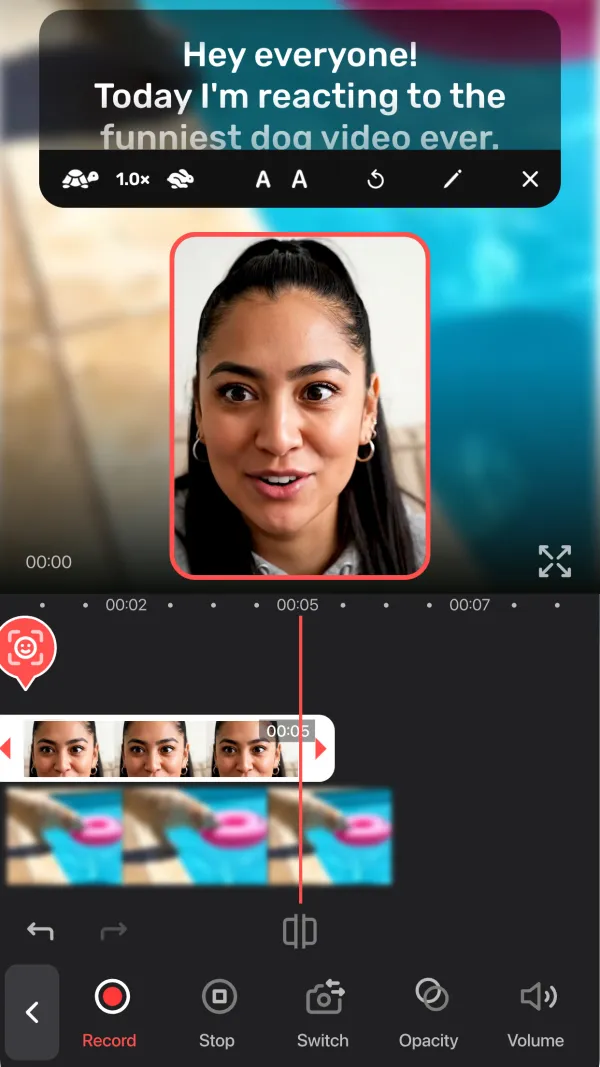
- Read and record. The script sits right under the camera and scrolls on its own. Slow it down or speed it up, change the text size, drag it up or down, or jump back to the start.
- Export. The script never shows in the video. Add captions from your voice, export up to 4K and post to TikTok, Reels or Shorts.
Why under the camera
When you read from a laptop or a second phone, your eyes drift away from the lens. With the script a few centimeters from the camera, you keep eye contact and don't forget a line.
Ready to record your first take with a script?
Frequently asked questions
Is there a free teleprompter app for iPhone?
ReactCam's teleprompter is free to use: write or dictate your script, record and export. Free exports carry a small watermark; Pro removes it.
Does the script show up in the video?
No. The script is only on your screen. ReactCam records the camera, not the screen, so it never ends up in the video.
Can I use a script I already have?
Yes. Paste it, dictate it, or snap a photo of the printed page and ReactCam turns it into text.
Can I change the speed and the text size?
Yes. Slow it down or speed it up, make the text larger or smaller, drag the box up or down, or jump back to the start.